How to find all your subscriptions
Subscriptions are scattered across app stores, payment services, bank statements and your inbox. Here is where to look, then how to keep them in one list so none renew by surprise.
For Android. No account. No bank connection.
Where to look, step by step
Work through these places once. Menu names change between app versions, so treat the steps as a guide.
1. Google Play (Android)
- Open the Google Play Store app and tap your profile picture.
- Tap Payments & subscriptions, then Subscriptions.
- Open each one to see its renewal date, or to change or cancel it there.
Check every Google account you use on your phone. Google Play only shows what you pay for through Google Play.
2. Apple (iPhone, iPad, Mac)
If you or your family use Apple devices, open Settings, tap your name, then Subscriptions. On a Mac, use the App Store and your account page. Apple lists active and expired subscriptions.
3. PayPal and other payment services
In PayPal, look for automatic payments (also called pre-approved payments) in your account settings, under Payments. Do the same in any other wallet or payment service you use online.
4. Bank and card statements
Look back through the last three to twelve months of statements for charges that repeat at the same amount or on the same day. Yearly charges only show up once a year, so go back a full 12 months if you can. Direct debits and card payments are both worth checking.
5. Your email
Search your inbox for the words providers put in receipts and renewal notices:
- subscription
- receipt
- invoice
- renewal or renews
- "your free trial" or "trial ends"
- "payment received" or "billing"
- "membership"
6. The rest of life
Don't forget costs that do not look like subscriptions: gym and club memberships, phone and internet plans, insurance, software licences, cloud storage, news sites, charity donations and loan repayments.
Then keep them in one place
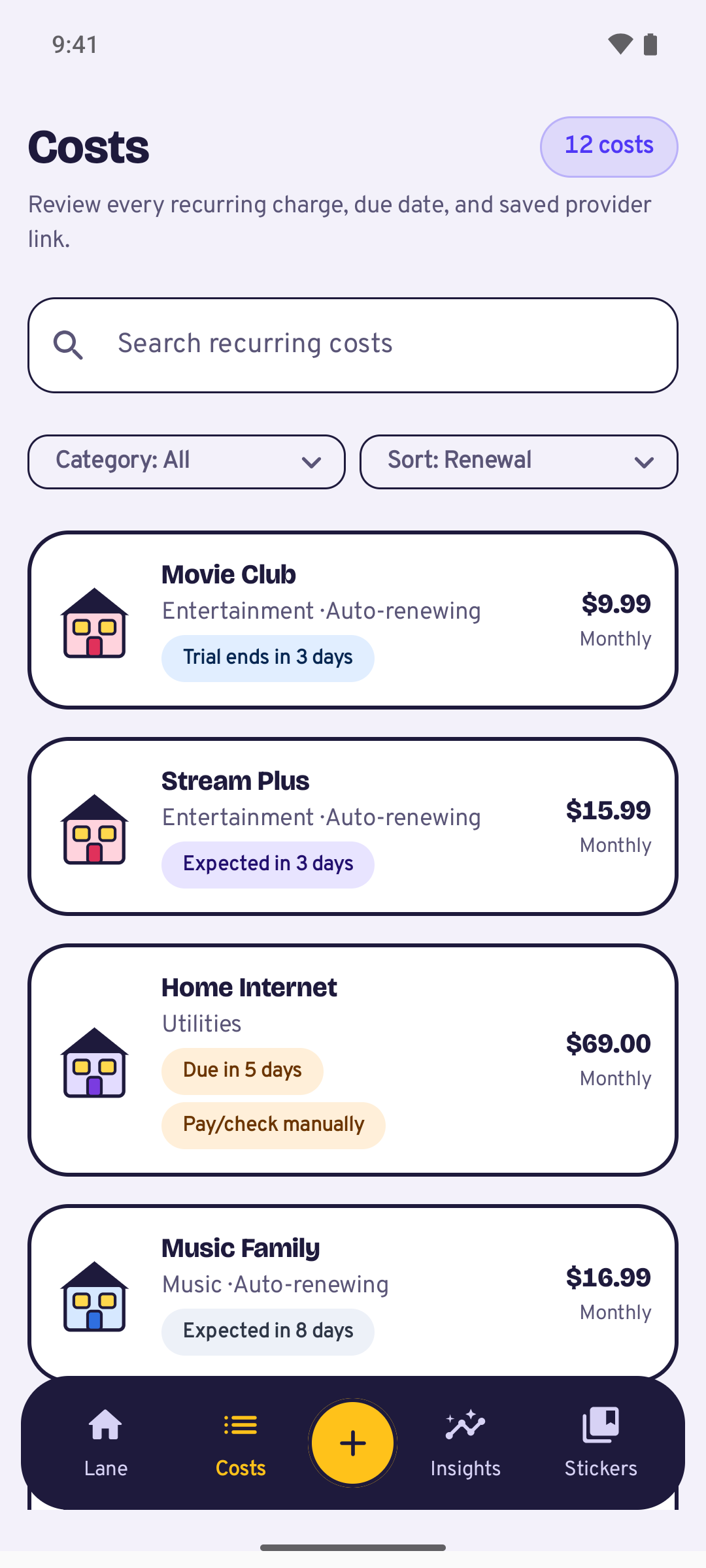
Finding subscriptions once is useful; staying on top of them is the real win. Add each one to SubTrack with its price, billing cycle and next renewal date. You get reminders before each renewal, a calendar of what is coming, and monthly and yearly totals. Everything stays on your phone, with no bank login.
SubTrack does not scan these places for you or check what you were charged. You enter the details, which keeps the app private. Once you have your list, review it: keep what you use, and for the rest go to the provider to change or cancel, since SubTrack cannot cancel for you. Recording the outcome in the app is optional.
Found a free trial? Set its end date so you hear about it first: free trial reminders.
Common questions
How do I see all my subscriptions on Android?
Open the Google Play Store, tap your profile picture, then Payments & subscriptions and Subscriptions. That covers subscriptions billed through Google Play. For everything else, check PayPal, your bank statements and your email.
How can I find subscriptions I forgot about?
Scan the last 12 months of bank and card statements for repeating charges, and search your email for words like receipt, invoice, renewal and trial. Also check each payment service you use.
Can SubTrack find my subscriptions automatically?
No. SubTrack does not connect to your bank, email or Google Play account. You add each subscription yourself, which is why no login or account is needed.
Where do I cancel a subscription I find?
Cancel with the company that bills you: in Google Play or Apple if it is billed there, in PayPal for PayPal payments, or on the provider's own site or app. SubTrack cannot cancel for you.
Is it free to track them in SubTrack?
Yes. Unlimited tracking, totals, the calendar and standard reminders are free.
Put them all in one list
Add what you find to SubTrack and get reminded before each renewal.
Find SubTrack on Google PlayFree to download · Android · Optional Premium